
Menu usability
Mobile Menu Accessibility Checklist for Restaurants
Test restaurant menu readability, category navigation, enlarged text, image alternatives, QR access, and a practical printed or staff-assisted fallback.
aiMenuu Editorial Team · October 4, 2026 · 7 min read
Start with a guest task, not a design preference
A restaurant mobile menu is easier to use when guests can find a category, read a dish and its price, and ask staff a clear question without struggling with the page. Test those actions on the published menu using a real phone. Attractive templates help, but the content, spacing, contrast, and alternative access determine whether the menu is practical during service.
This mobile menu accessibility checklist is an owner-level usability review. It helps identify obvious obstacles before publication and after significant changes. It does not certify legal compliance or replace a formal accessibility audit. Use an AI menu maker to organize your approved menu, then review the actual result from the guest's perspective.
Keep the menu as readable text
A photograph or PDF can be a useful source, but it should not be the only way to read a mobile menu. Guests may have to pinch, zoom, pan sideways, or download a file before finding one price. Image-only text is also difficult for assistive technology to interpret and does not adapt naturally to enlarged text.
Import the source into editable categories, names, descriptions, and prices. Check the extraction against the approved original before publishing. The guide to converting a PDF menu into a mobile menu describes that workflow. AI can help structure the draft; the restaurant remains responsible for confirming what each item actually says.
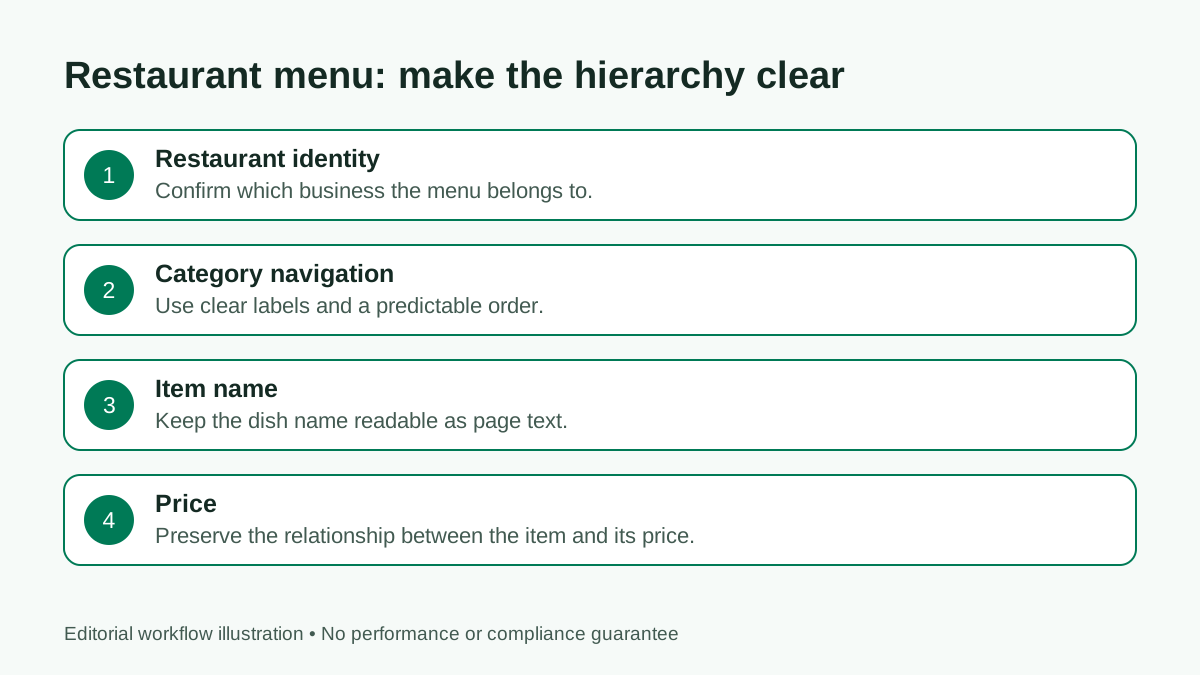
Give categories a clear reading order
Use familiar category names and put them in an order that reflects how guests browse. Do not scatter one category across several decorative panels or use a picture as the only indication that a section contains drinks. A guest should understand the menu structure before reading every item.
Look at the full page rather than the shortest sample category. Long menus need predictable navigation and headings. If a category link exists, test that it reaches the intended section and leaves the section heading visible. Avoid making guests return to the top simply to identify where they are.
Test enlarged text and narrow screens
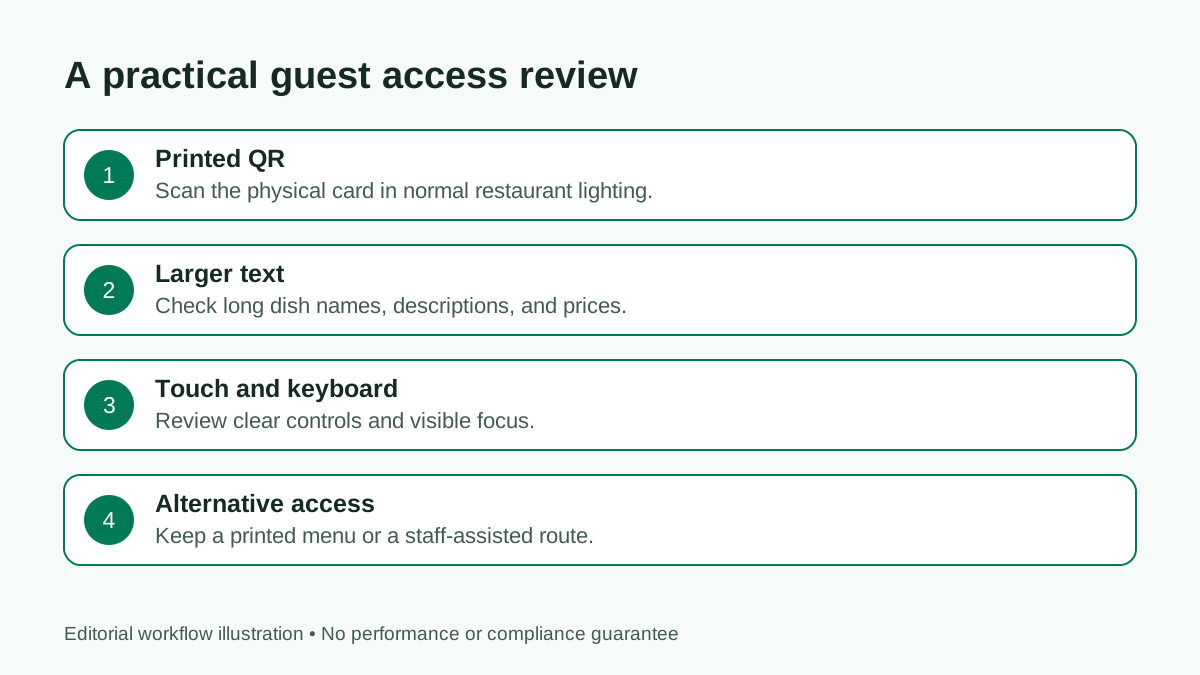
Increase browser text size and review the menu on a small phone. The longest dish name, a detailed description, and an item with several size prices make useful stress tests. Text should wrap without hiding the price, covering another control, or forcing sideways scrolling.
Check portrait and landscape orientations. A layout can appear comfortable on a large phone yet become cramped on a narrow screen. Keep the essential information visible when a photograph fails to load. The menu readability guide adds practical checks for type size, spacing, and scanning.
Review contrast and meaning separately
Read item names and prices against their real backgrounds. Thin gray text on cream, or text over a busy food photograph, may look elegant in the editor but be difficult in a dim restaurant. Check the active category and important notes as carefully as the main heading.
Do not make color the only way to explain a label. If a green marker indicates a vegetarian dish, include clear words as well. The W3C's web accessibility design tips cover readable contrast and understandable controls. Apply those principles to the menu instead of assuming one attractive color palette suits every guest.
Keep dish descriptions accurate and plain
Write enough information to help someone decide what to order without burying the main ingredients in a long story. Keep names consistent with staff terminology so a guest can ask about a dish easily. Explain an unfamiliar preparation when that explanation helps the decision.
Review dietary and allergen-related wording with the restaurant team. Do not let extraction software or a visual template invent a label. If staff must confirm details, say how guests can ask them. Menu copy should describe the restaurant's approved information rather than imply a guarantee the business has not established.
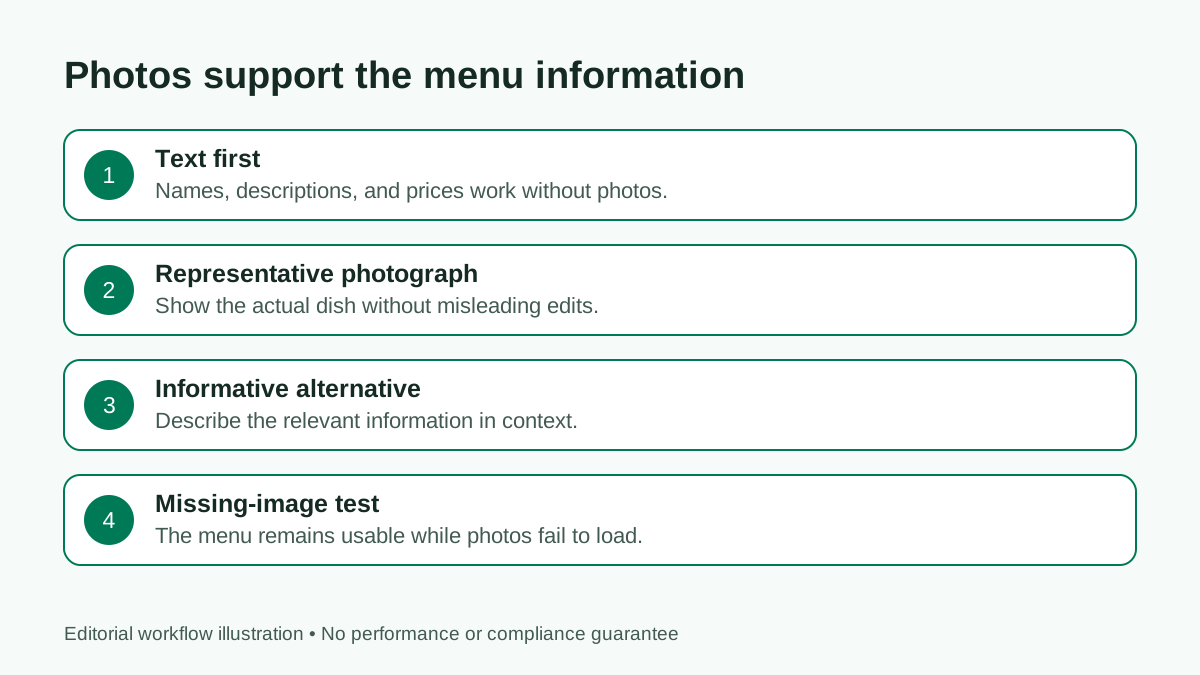
Use food images as supporting information
A useful food image represents the dish honestly and helps someone understand it. The menu must still work when the image is missing or cannot be seen. Avoid using a photograph to carry the only price, item name, or dietary note.
Give informative images a meaningful alternative description where the publishing system supports it. Describe what matters in context, not a string of search keywords. The W3C's images tutorial distinguishes informative images from decoration. That distinction is more useful than repeating the same generic alternative text across every dish.
Check controls with touch and keyboard
Tap adjacent category links and any expandable sections. Controls should be separate enough to select reliably without accidentally opening the neighboring option. Check that the active state is understandable and that a control does not depend entirely on hovering.
If the menu includes interactive navigation, try keyboard movement on a desktop browser too. Look for a visible focus indicator and a logical order. Record any control that cannot be reached or activated. An owner review can reveal a problem even when the final fix needs the platform developer.
Test the printed QR journey
Scan the physical table card under the lighting guests will encounter. Check glare, placement, damage, and whether the first page identifies the restaurant. Opening the editor's QR preview is not the same as testing the production print.
Use mobile data as well as Wi-Fi and confirm that the page opens without an account or an app installation. The restaurant QR code menu guide covers the physical code and the destination together. Keep a readable URL and a way to ask staff for help when a guest cannot scan.
Provide a practical alternative
A mobile menu should extend access, not make owning a charged smartphone a condition of learning what the restaurant serves. Maintain an appropriate printed menu or staff-assisted option and keep its information aligned with the online version.
Make that alternative easy to request. Staff should know where it is and how to answer when the QR page cannot load. Review the print and digital menu workflow to reduce conflicting prices and item lists across formats.
Keep a short review record
Record the date, device, task tested, issue found, owner, and retest result. Start with problems that prevent someone from finding or reading an item, then fix confusing navigation and presentation. A simple shared checklist is enough; the record matters more than elaborate software.
Repeat the review after major menu changes, new photos, or a template switch. aiMenuu's core workflow imports an existing menu, supports owner editing and styling, and publishes a mobile-friendly menu with a QR code. Accessibility remains a review of the finished page, not an automatic conclusion from choosing a builder.
Frequently asked questions
Does this checklist certify accessibility compliance?
No. It is a practical owner review. A formal audit should evaluate the applicable requirements and the actual published experience.
Can a menu photo remain the only public menu?
A photo may be a source, but readable structured text is easier to enlarge and interpret. Keep an alternative way for guests to access the approved menu.
What should I test first?
Find one category, read the longest item and its price, enlarge the text, and scan the physical QR code while signed out.