
QR Menu Operations
QR Menu Not Working? A Restaurant Recovery Checklist
A practical, service-first checklist for diagnosing QR menu failures, keeping guests moving, and deciding whether a code, link, page, or published menu needs attention.
aiMenuu Editorial Team · 2026-11-19 · 9 min read
When a guest says the QR menu is not working, the fastest response is to identify which layer failed: the printed code, the destination link, the mobile page, or the published menu content. A reliable AI menu maker can simplify the content and publishing side, but restaurant teams still need a short recovery routine for the physical code, guest connection, and live page. Start by keeping service moving: offer a clean printed menu or a staff-assisted option, then test the same table code on a second phone using mobile data. That one check separates many device or Wi-Fi problems from issues that affect every guest. The checklist below is designed for managers and front-of-house teams during a real shift. It avoids risky shortcuts, creates a useful incident record, and makes clear when a reprint is necessary—and when updating the destination or menu is enough.
First, identify where the QR menu failed
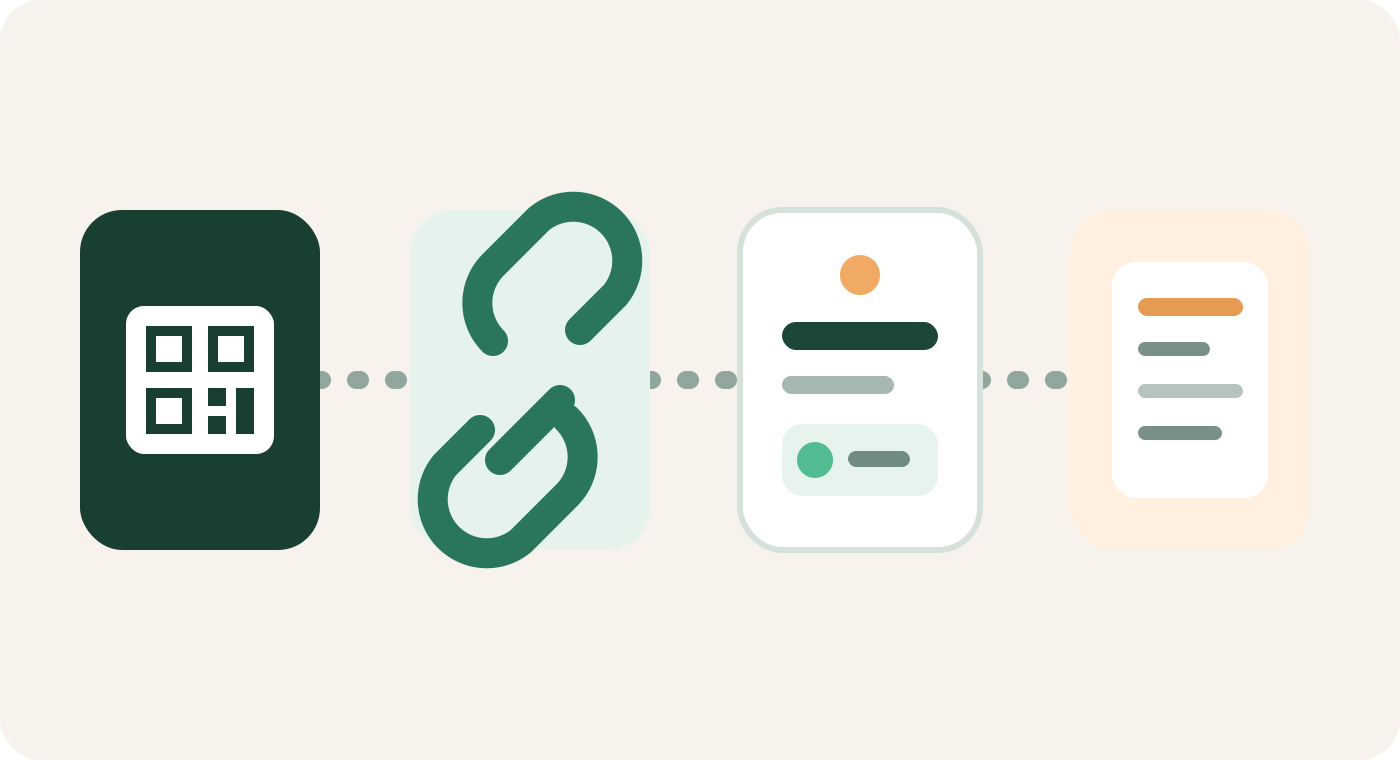
A QR menu is a chain, not a single object. The camera must recognize the printed pattern, the phone must open the encoded address, the web page must load, and the published menu must show the correct information. Treat those as four separate checkpoints. Changing the menu will not repair glare on a table card, and reprinting a code will not fix a page that is temporarily unavailable.
Ask the guest what happened in neutral terms: Did the camera show a link? Did the link open? Did the page remain blank or display an error? Did the menu open but show the wrong venue, old prices, or missing items? Record the exact symptom rather than writing only “QR failed.” The symptom points to the next useful test.
Do not ask a guest to bypass a browser security warning, install an unfamiliar scanner app, or enter personal information merely to view a menu. If the normal camera and browser route does not work, switch to the fallback while staff investigate.
Keep the guest moving before troubleshooting
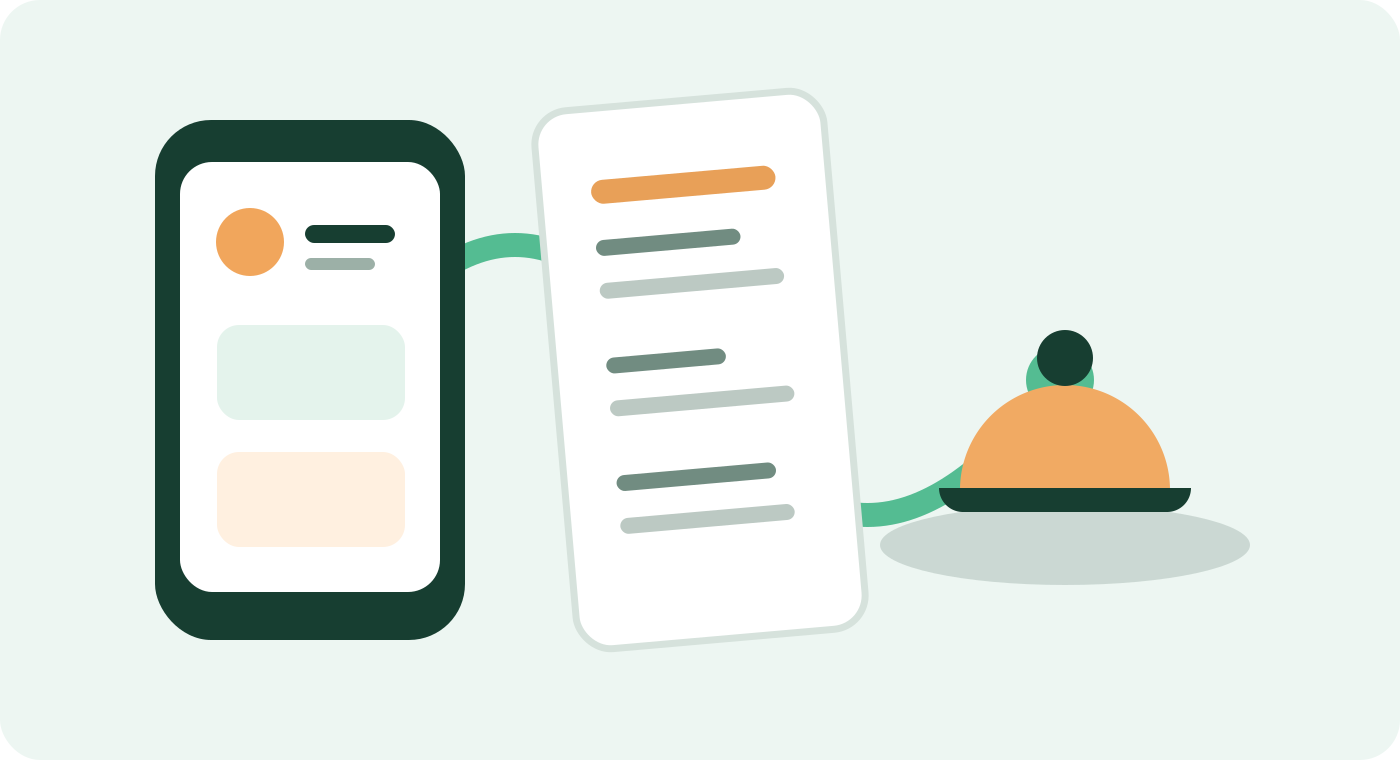
The guest should not wait while a manager experiments. Offer a printed menu, a readable menu board, or staff assistance immediately. This is also the right response for guests who cannot or prefer not to use a phone. The mobile menu can remain the primary digital path without becoming the only path available at the table.
Assign one person to test while the server continues service. If several tables report the same symptom, pause explanations at each table and use one consistent message: the digital menu is being checked and an alternative is available. Avoid promising a restoration time until the failure layer is known.
A practical mobile menu accessibility checklist helps teams prepare that fallback before an incident. Keep the printed copy current, place it where staff can reach it, and make sure the same allergen, price, and availability notes are not contradicted across formats.
Run a two-minute physical code check
Use the phone's normal camera and hold it steady at a comfortable distance. If no link appears, wipe the table card, move it away from glare, and try from a slightly different angle. Creases, scratches, condensation, sauce, low contrast, excessive stylization, and a missing clear border around the code can all reduce recognition.
Next, scan a clean copy of the same code away from the table. If the clean copy works but the table copy does not, replace that table card rather than changing the website. If no copy works on two ordinary phones, confirm that the printed code is the correct production code and not a preview, draft, or image copied from an old campaign.
Placement can create failures even when the file is valid. Review the restaurant QR code placement guide for height, lighting, distance, and table-card checks. Test the real material after printing; a code that scans from a bright laptop screen may behave differently under restaurant lighting on glossy stock.
Test the destination and connection separately
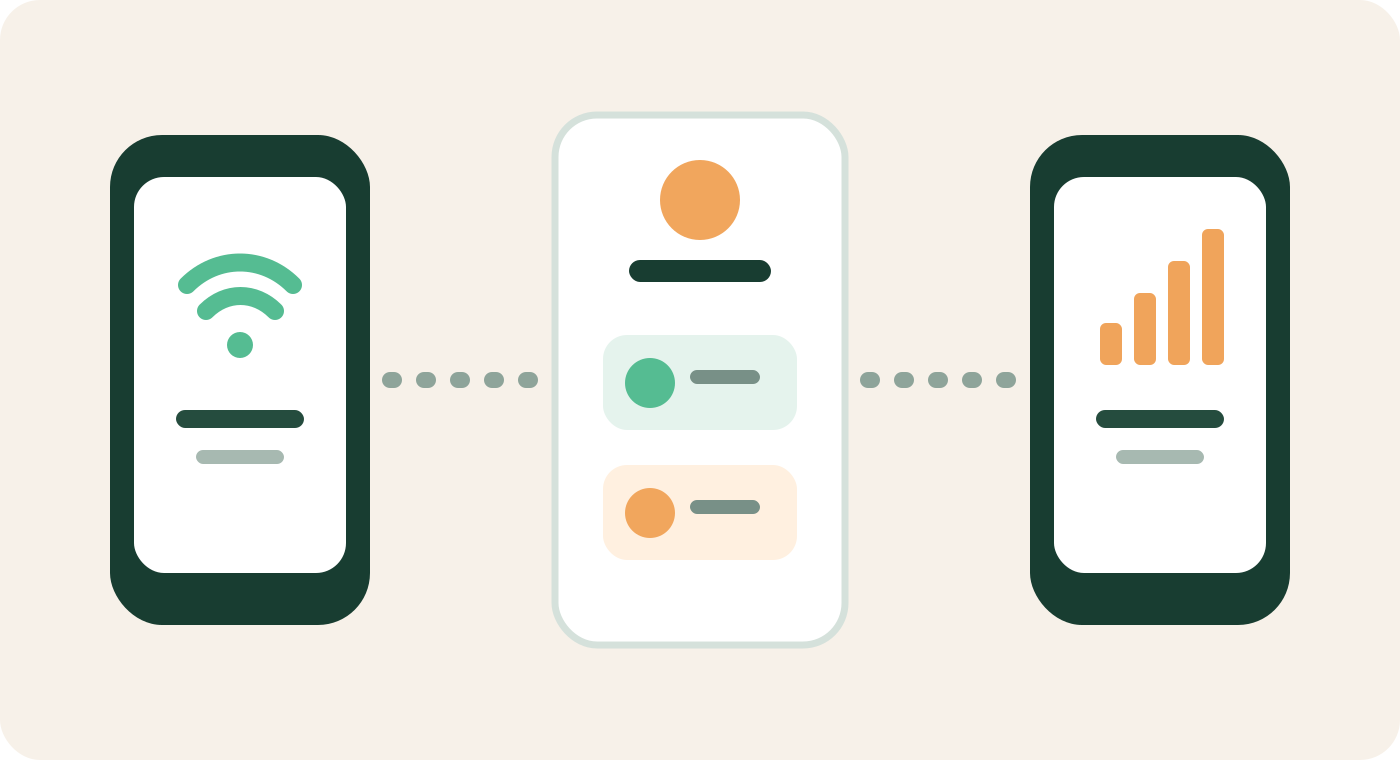
If the camera recognizes the code, read the destination before opening it. It should be the expected secure restaurant address, not a shortened link you cannot identify or a preview URL. Open it once on the restaurant Wi-Fi and once on mobile data. A page that works on mobile data but not Wi-Fi points to the local network, captive portal, or filtering path rather than the menu itself.
If both connections fail, type the known public menu address directly into the browser. When the typed address works but the QR link does not, the code may contain an obsolete or mistyped destination. When neither route works, note the browser message and status without repeatedly republishing content. The public address and deployment need attention.
Check another public page on the same site. If the homepage loads but the menu route does not, the problem is likely limited to that route or publication. If the whole site is unavailable, keep the fallback active and escalate with the exact time, address, and screenshot.
Verify the live menu, not the editor preview
Once the page loads, confirm that it is the public menu guests are meant to see. Check the restaurant name, menu sections, prices, availability notes, and a few representative items. An editor preview can look correct while the public version still reflects an earlier publication, so test from a normal browser session rather than relying only on an open staff tab.
If the page is public but the information is stale, correct the source menu and publish the intended version through the established workflow. Then refresh on a second device and verify the public address again. The guide to updating a QR menu without reprinting explains why a maintained destination is more useful than producing a new code for routine content changes.
Do not switch the QR code to an unrelated emergency page merely because it is available. That can confuse guests and make later recovery harder. Keep one controlled destination, correct its content, and verify the live result before announcing that the issue is fixed.
Decide whether to reprint or republish
Reprint when the physical code is damaged, too small, low contrast, covered by glare that cannot be corrected, or permanently encodes the wrong destination. Replace only the affected batch when other copies of the same production code still work. Before ordering a full run, test a proof on the actual material at the intended tables and viewing distance.
Republish when the code and destination are valid but the public menu content is wrong or incomplete. Repair the site or route when the destination will not load on independent networks. Change the local network when only restaurant Wi-Fi fails. These are different remedies, and separating them prevents unnecessary printing and repeated guest disruption.
After the fix, scan three representative placements with at least two phones. Confirm that the link opens, the page is readable without zooming, the current menu appears, and the fallback remains available. A successful scan alone is not a complete verification.
Create an incident record that improves the next shift
Record the date and time, table or placement, printed batch if known, phone and browser, Wi-Fi or mobile data, destination shown, visible error, fallback used, action taken, and final verification. This turns a vague complaint into evidence. If several incidents share one table, network, or print batch, the pattern becomes visible.
Add a brief opening check and a weekly sample check to the manager routine. The opening check confirms the public menu and one table code; the sample check rotates through other placements and inspects wear, glare, and current content. Test again after a domain, routing, design, or menu-publishing change.
Close the incident only after a person who did not make the change can open the public menu from the table. That independent check catches cached staff tabs, preview links, and assumptions that a successful save automatically means a successful guest experience.
People also ask
Frequently asked questions
Why does a restaurant QR code scan on one phone but not another?
Camera focus, operating-system support, lighting, distance, damage, and browser or network settings can differ. Test with the normal camera on a second current phone, move away from glare, and compare a clean copy before changing the menu or reprinting every code.
Should a restaurant reprint its QR code when the menu is outdated?
Usually not if the existing code opens a maintained public destination. Update and republish the menu, then verify the same address on another device. Reprint only when the physical code is unreadable or permanently points to the wrong destination.
What should staff do while the QR menu is unavailable?
Offer a current printed menu, readable menu board, or staff-assisted option immediately. Continue service while one person tests the code, destination, connection, and public page.
How can a manager tell whether restaurant Wi-Fi is the problem?
Open the same public menu on restaurant Wi-Fi and mobile data. If mobile data works but Wi-Fi does not, check the local network, captive portal, or filtering path. If both fail, test the known public address directly and record the browser message.
How often should restaurant QR menus be tested?
Test one representative code at opening, rotate through other placements weekly, and retest after changes to the domain, routing, design, print material, or published menu. Keep an accessible fallback available even when checks pass.